
Every file on your servers. Found.
ShareSeek indexes your NAS and file servers on your iPhone and iPad, so any file is a few keystrokes away. By name, by the words inside it, even by the text in a photo.
- SMB · SFTP · WebDAV
- Works offline
- No subscription
- Data Not Collected
- As you typeResults in milliseconds
- On deviceA private index, even offline
- Inside filesDocuments, PDFs and photos
- One priceEvery feature included
Search
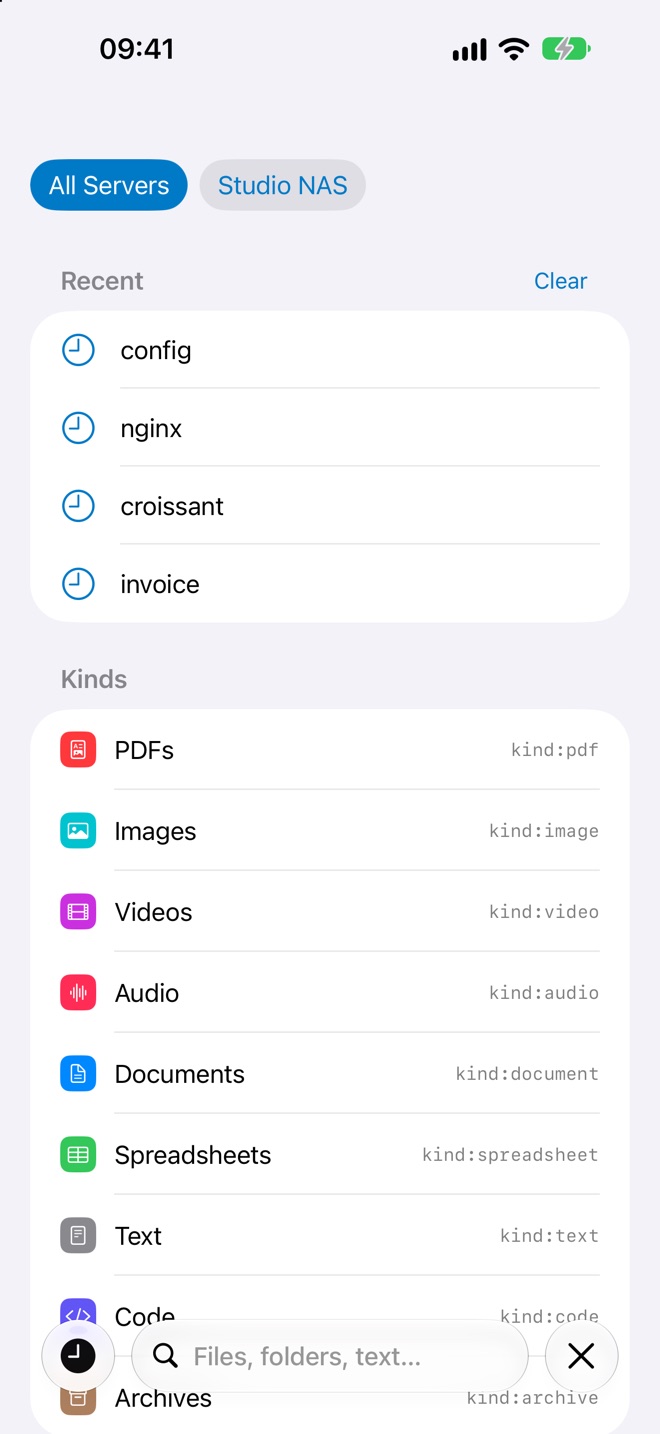
All your servers. One search field.
ShareSeek lists every folder once and keeps a private index on your device. After that, search never waits for the network: results appear as you type, across every server at once.
Narrow it down with filters that turn into search tokens as you type.
kind:pdfext:mkv>10mbmodified:7dsrc:nas
Content search
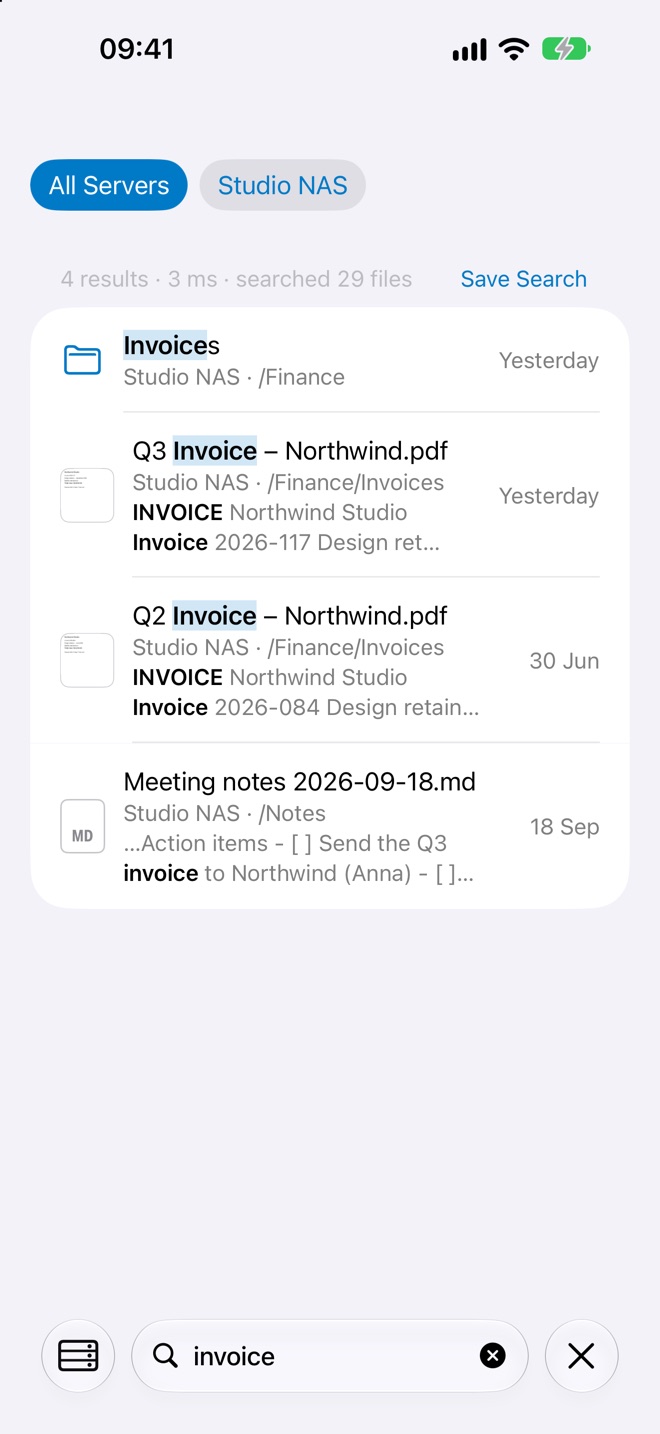
Find the words inside.
Can't remember what you called it? Search what it says. ShareSeek reads text files, code, notes and PDFs, and shows the matching line right in the results.
- Turn it on per server. Filename search stays instant either way.
- Wi-Fi only by default, with a size limit you choose.
- Unchanged files are never downloaded twice.
Text in photos
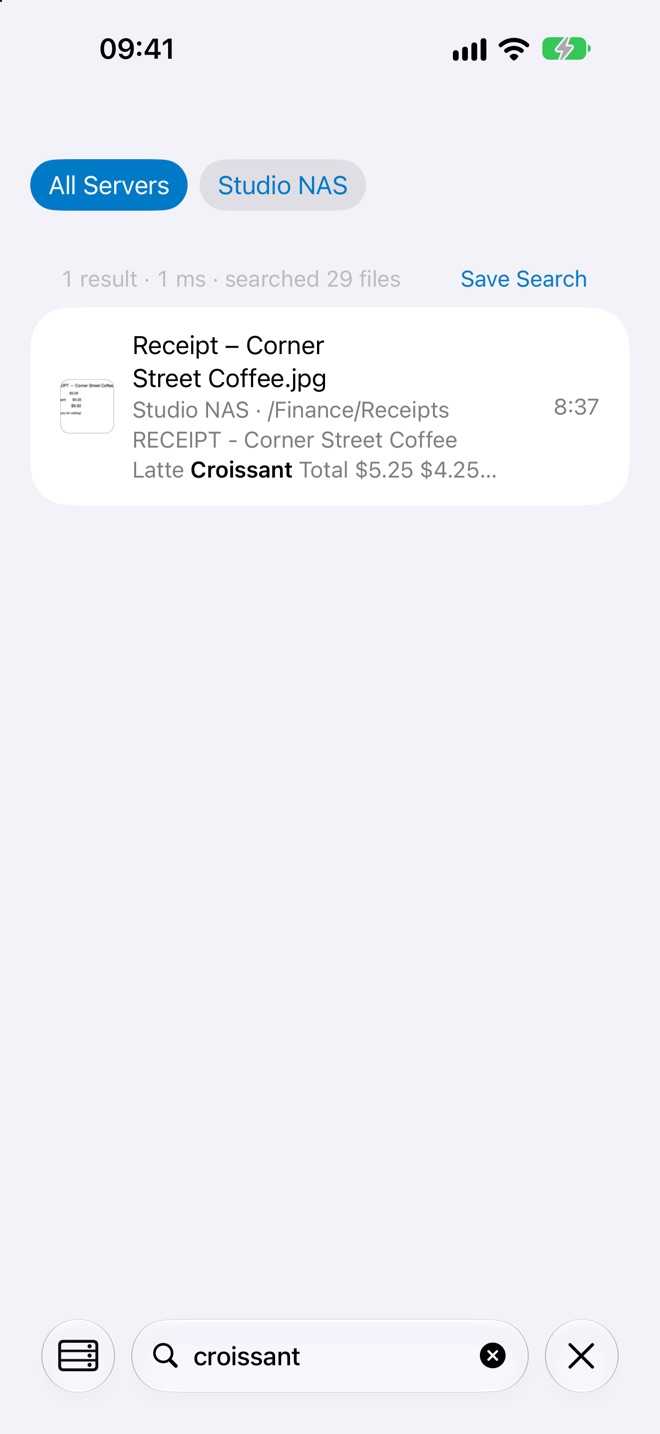
Search a photo for “croissant”.
Receipts, whiteboards, screenshots, scanned letters. ShareSeek recognises the text in images and scanned PDFs on your device, so a photo of a receipt turns up when you search for what's printed on it.
- Apple's on-device text recognition. Nothing leaves your iPhone or iPad.
- Scanned PDF pages without a text layer are recognised too.
Preview
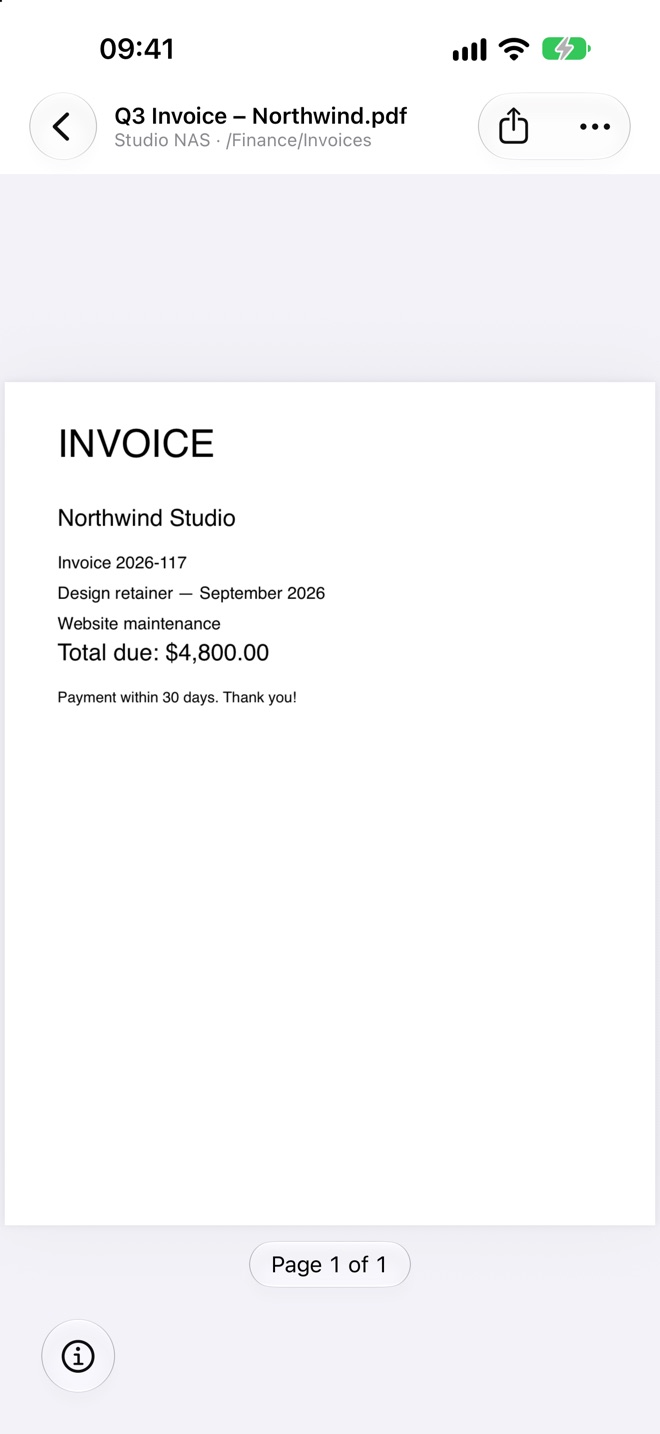
Open almost anything.
Tap a result and it opens, without leaving the app or hunting for a viewer.
- PDFs, and images with Live Text
- Markdown, code, config files, CSV and spreadsheets
- Video and music, including MKV and WebM, streamed straight from the server
- AirPlay, Chromecast and Picture in Picture
- Quick Look for Office, iWork and more
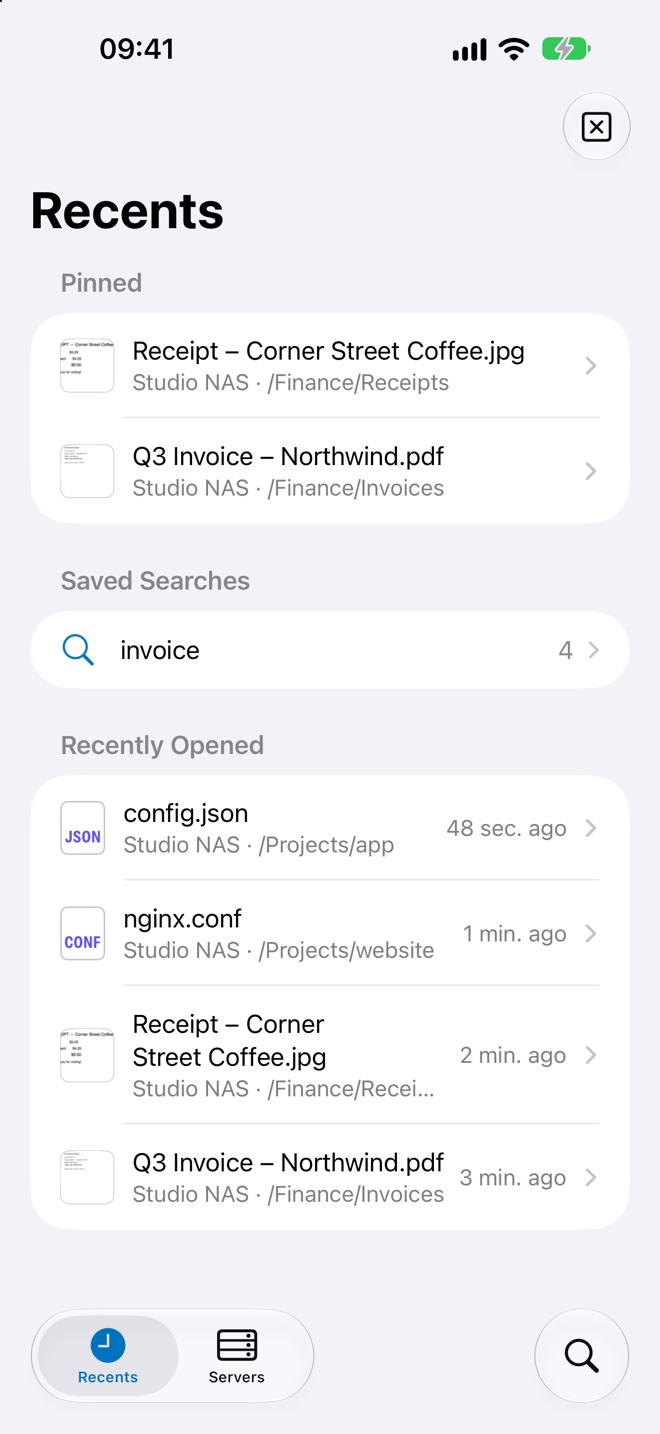
Recents
The files you need, one tap away.
Pin the files you keep coming back to and save the searches you run every week. Recently opened files stay in Recents, and with the offline index you can still find them when the server is out of reach.
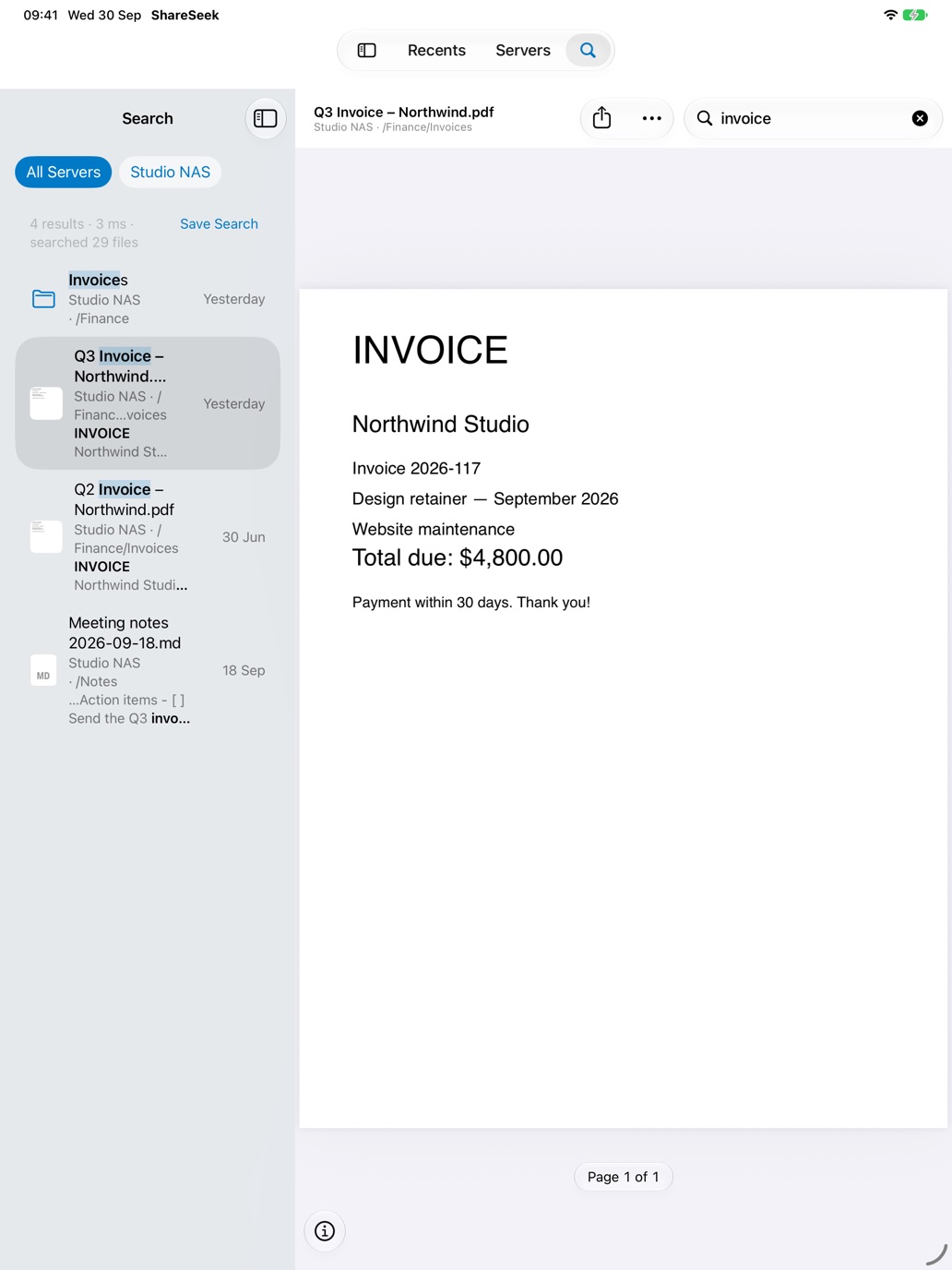
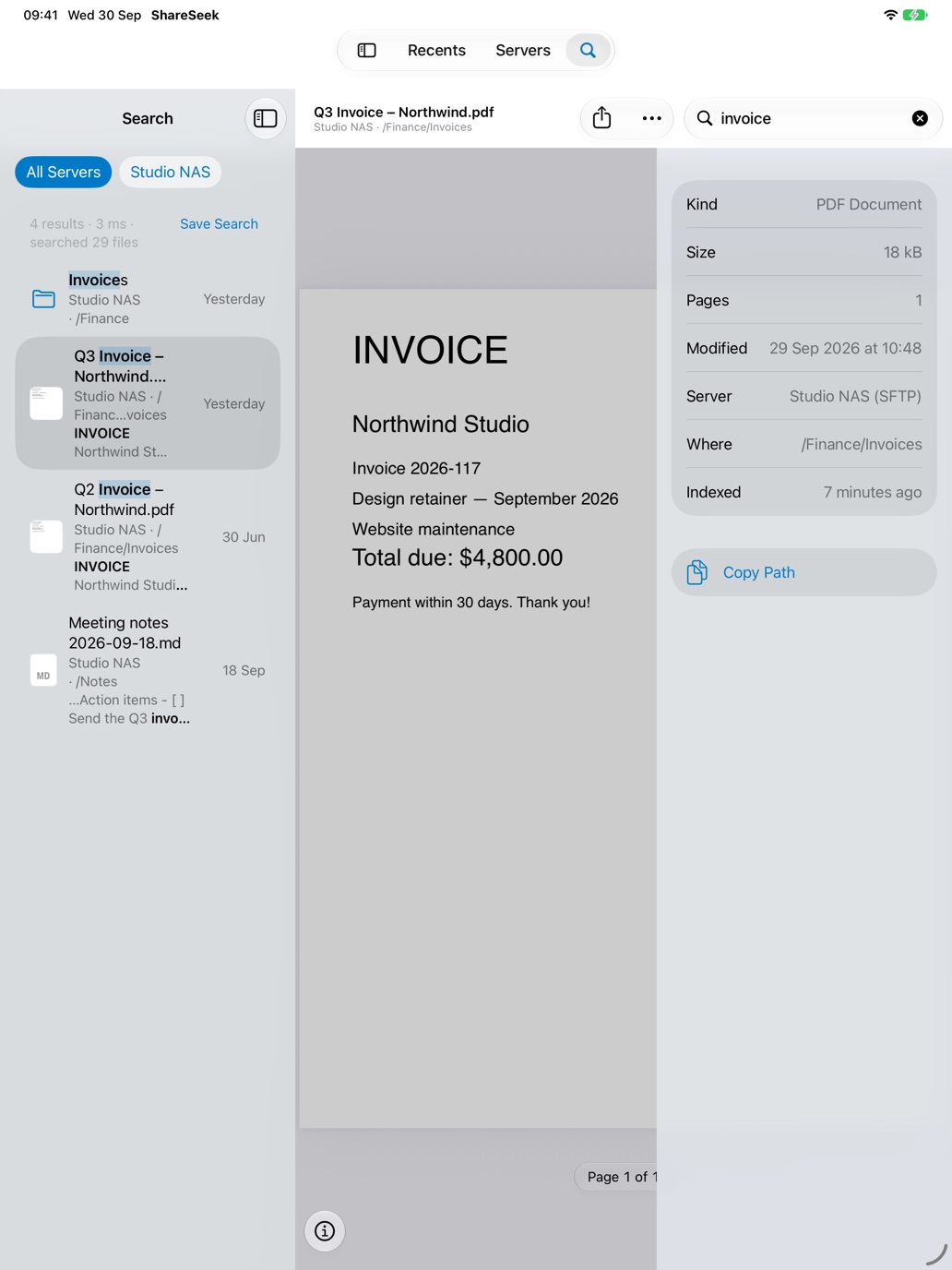
iPad
Built for the big screen and the keyboard.
Results on the left, the file on the right, file info in the inspector. Every command is in the menu bar, with the shortcuts you know from the Mac.
At home on iPhone and iPad
Works the way your device does.
Spotlight, Siri and Shortcuts
Ask for “files modified today”, or build a Shortcut that searches your servers. Pinned and recent files show up in Spotlight.
Widgets
Pinned files on your Home Screen and Lock Screen, and a widget that shows whether your servers are up to date.
Control Center and Action button
Jump straight into search from Control Center, the Lock Screen or the Action button.
Drag and drop
Drag results into Mail, Notes or Files. Drop files onto a folder to upload them to the server.
Multiple windows
Open a file or a server in its own window on iPad and keep working side by side.
Face ID lock
Optionally require Face ID or Touch ID to open ShareSeek, and hide its contents in the app switcher.
Your servers
Connects to what you already have.
A Synology or QNAP NAS, a TrueNAS box, a Mac or PC sharing folders, a Raspberry Pi, a Nextcloud or a storage box in the cloud. Nearby servers show up automatically when you add one.
SMB 2 and 3 with encryption, user accounts, domains and guest access. ShareSeek warns you when a server doesn't encrypt or sign.
Password or private key (Ed25519, RSA). The server's key is remembered, and ShareSeek refuses to connect if it ever changes.
HTTPS by default. Plain HTTP only if you allow it for that server, with a clear warning.
Your files stay yours.
ShareSeek connects straight from your device to your servers. There are no accounts, no analytics and no tracking. Read the privacy policy.
- Direct connectionsNothing goes through a ShareSeek server. There isn't one.
- Keychain for passwordsPasswords and keys stay in your device's Keychain.
- Index on deviceThe search index and text recognition never leave your iPhone or iPad.
One price. Everything included.
No subscription, no in-app purchases, no locked features. Buy it once for iPhone and iPad.
Try it right away with the built-in demo server, no setup needed.
Questions
Does ShareSeek upload my files anywhere?
No. ShareSeek talks only to the servers you add, directly from your device. The index, the downloaded copies and your passwords stay on your iPhone or iPad.
Does it work away from home?
Search does. The index lives on your device, so you can find any file offline. Files from a server you can't reach are marked as unavailable. Recently opened files open from their saved copy.
To open files away from home, reach your server the way you normally would, for example over a VPN.
How long does the first index take?
ShareSeek lists every folder once. A few thousand files take seconds, and very large libraries take longer. You can keep using the app while it works, and iOS can keep it going when you switch away. Later updates only check what changed.
Will searching inside files use a lot of data?
Content search and text recognition are off until you turn them on for a server. ShareSeek shows an estimate of how much it will download first. By default it only downloads on Wi-Fi, and it pauses in Low Data Mode and Low Power Mode.
Can ShareSeek change or delete my files?
It doesn't change or delete anything. It only writes to a server when you drop files onto a folder to upload them.
What do I need?
An iPhone with iOS 26 or an iPad with iPadOS 26, and a server that speaks SMB, SFTP or WebDAV. No server yet? Tap “Try the Demo Server” to explore with sample files.